
01. Your Personal Dashboard
The Personal Dashboard is the starting point for reviewing your purchases, settlements, and account activity. Open Home from the side menu.
1. Your dashboard with activity
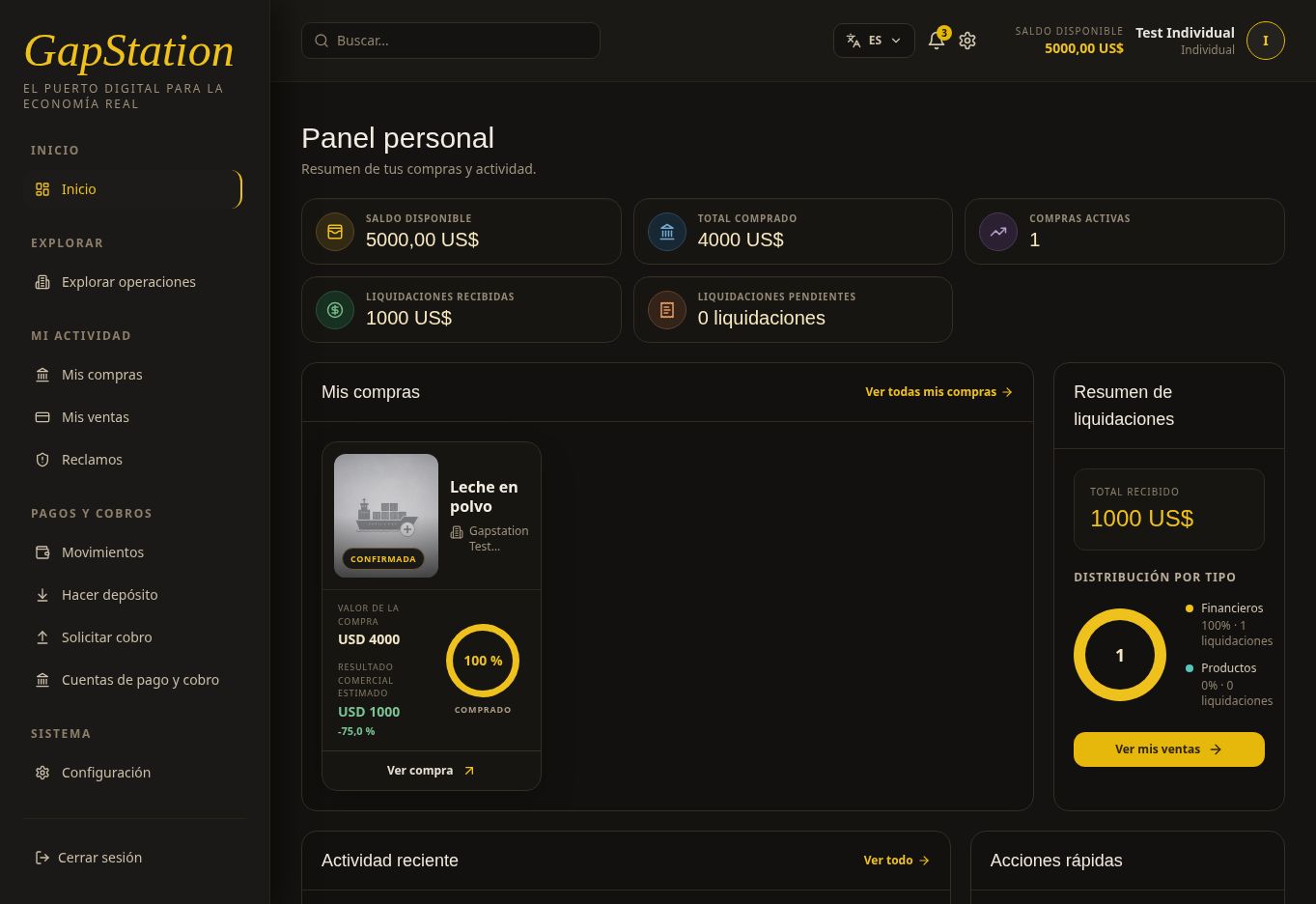
This screenshot shows the complete test example: a USD 5,000 deposit, a USD 4,000 purchase, a USD 5,000 return, and an approved USD 1,000 withdrawal. All figures belong to the test environment.
2. How to read the indicators
| Indicator | Example value | What it means |
|---|---|---|
| Available balance | USD 5,000 | Money you can use after the approved withdrawal. |
| Total purchased | USD 4,000 | Amount of the purchase; it is not your current balance. |
| Active purchases | 1 | Count shown by the dashboard. Open the purchase details to check its status. |
| Settlements received | USD 1,000 | This test shows the recorded profit. The wallet received a USD 5,000 return: USD 4,000 principal plus USD 1,000 profit. |
| Pending settlements | 0 settlements | No pending settlements appear in the summary. |
Do not add all indicators together: they represent different concepts. Use Transactions to reconstruct the balance: 5,000 − 4,000 + 5,000 − 1,000 = USD 5,000.
3. Open a purchase from the dashboard
My Purchases shows the Leche en polvo card as CONFIRMED, with a purchase value of USD 4,000 and estimated commercial return of USD 1,000. Select View purchase for details or View all purchases to open the full list.
The 100% purchased indicator is the progress shown for the operation purchase; it is not a profit percentage.
Observed issue in this version: the card shows −75.0% beside the estimated commercial return. That percentage does not match the example profit and should not be interpreted as a confirmed loss. USD 1,000 profit on a USD 4,000 purchase is 25%. Check the amounts in the details and Transactions.
4. Review the settlement summary
The block shows USD 1,000 received and one financial settlement: 100% financial and 0% product. This distribution indicates the settlement type, not the return rate. Select View my sales and review Sales and returns to understand the result.
5. Review recent activity and notifications
Recent Activity lists the USD 5,000 deposit, the USD 5,000 return transfer, and the confirmed USD 1,000 withdrawal. These are notifications from the example flow; use the Transactions history to verify actual wallet inflows and outflows.
Select View all or the bell icon in the top bar to open notifications. The counter shows unread notifications; there are three in the screenshot.
6. Continue from the quick links
- Explore opportunities: browse opportunities and open their details.
- My purchases: review your recorded purchases.
- My sales: review returns and settlements.
- Make a payment: open Make deposit to add balance. Follow the deposit guide.
Is your account still empty?
A new account normally has no purchases or activity. You can browse opportunities; before buying, make a deposit and wait for approval. After completing an action, refresh the page and wait for it to finish loading.
No comments to display
No comments to display